
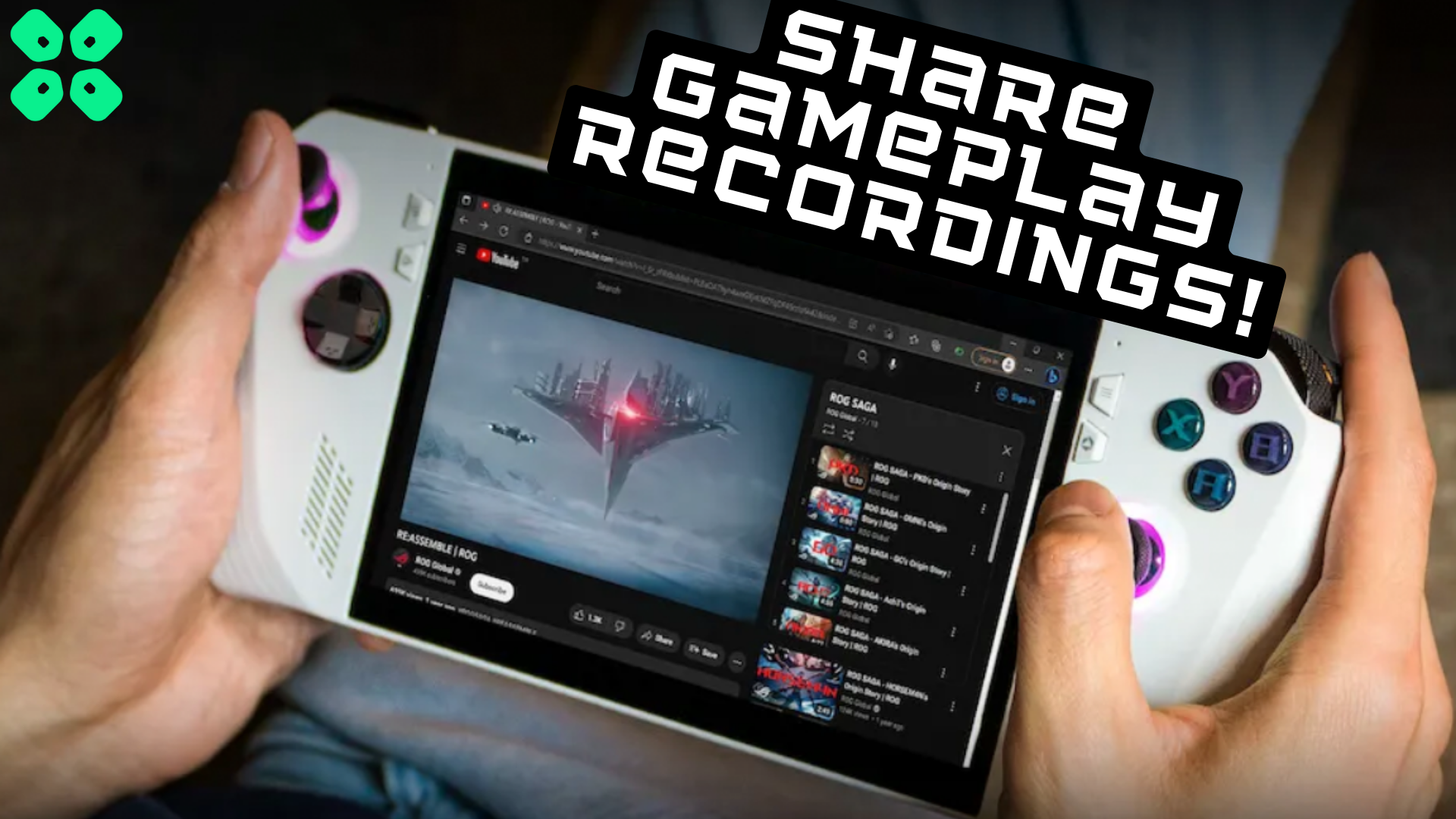
Want to share your epic gaming moments with your friends? Here is how you can share screenshots and gameplay recordings on Asus ROG Ally.
Whether you’re a gamer or a content creator, sharing gameplay is always worth the fun. Sharing the recorded gameplay on the console always seems like a hectic job. But with Asus ROG Ally, it’s only a matter of a few seconds.
To explain things more clearly, we have mentioned 2 unique methods to share gameplay and screenshots on Asus ROG Ally. You can follow any of these methods, whichever seems more convenient.
Sharing Screenshots/Gameplays on Asus ROG Ally
Method #1: Sharing from Armoury Crate
Once you have captured the screenshots and recorded the gameplay on Asus ROG Ally, you can access them in the Armoury Crate by opening the ‘Content’ tab. Here you will find the ‘Media Gallery’ option, including screenshots and gameplay.
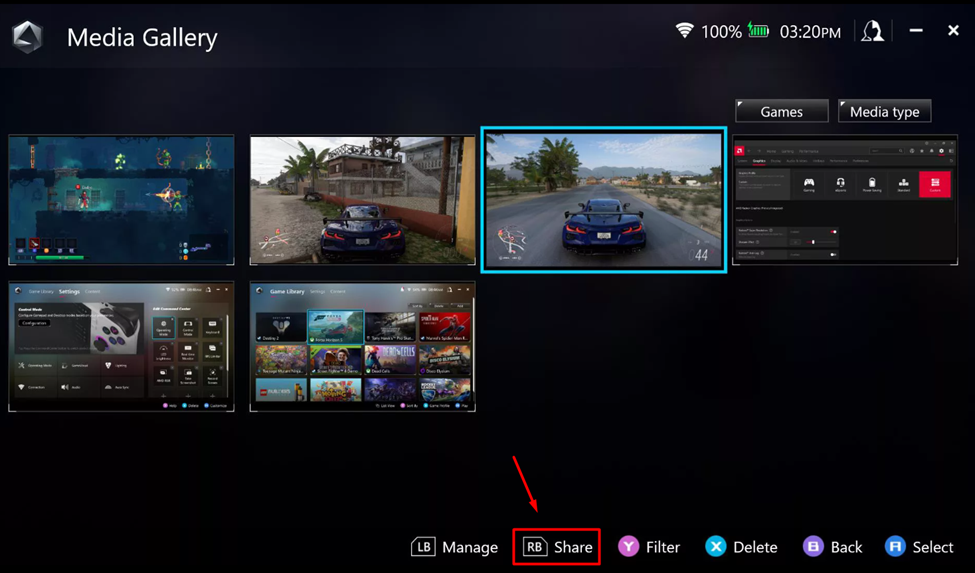
To share any screenshot or gameplay from your console, navigate to that image or recording and press the ‘RB’ button to share it over various social media channels like YouTube, Instagram, or Twitter.
You can also access the screenshots and screen recording of Asus ROG Ally via Windows mode by navigating to C:\[yourusername]\Videos\Capture, where [yourusername] is in Windows 11 Explorer.
Also Read: 5 Methods to Fix Asus ROG Ally Crashing Issues
Method #2: Share Via Windows
If you’re accessing social media platforms via Windows social apps, then follow these settings to access your screenshots and gameplay.
- Open Windows mode on Asus ROG Ally and tap Start Menu.
- Enter the following path in ‘This PC’ to access your screenshots C:\[yourusername]\Videos\Capture, where [yourusername].
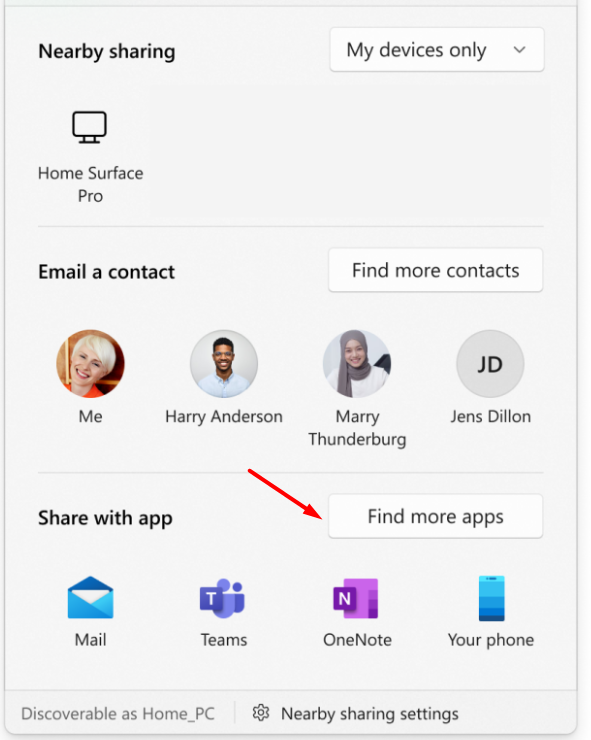
- Select a screenshot or gameplay recording and press the ‘RT’ button to open a pop-up menu.
- Select ‘Share’ and tap on ‘Find more apps’ to directly post the screenshot/gameplay recording on your favorite social apps.
Final Words
Asus ROG Ally is one of the best handheld gaming consoles due to its flexible and user-friendly operation. ROG Ally is equivalent to a gaming PC that gives a decent gaming performance with all the options to customize your gaming experience. Similarly, you can share your favorite gaming moments without much effort.
Hopefully, our methods were helpful to guide you well.